Course Reflection

Integrating Technology, EDTECH Course 541, is one of the first classes of my first semester in Masters in Educational Technology program. Not really knowing what to expect, I was both nervous and excited about the new journey I was beginning.

Over the past 15 weeks, I have learned so much in a variety of different topics; but the part that impresses me the most is the variety of tech programs. The technology that I integrated into my own lesson plans and activities was substantial, but I have also had the opportunity to view the lesson plans and activities of the other students in the class and the programs they incorporated. Although I have not had an opportunity to delve into each program individually, I have been keeping track of them to research in greater detail later. I anxiously anticipate integrating all of the programs into my classes in the near future. However, the learning did not stop there. During this course, I was also able to fine tune the way in which I write lesson plans, objectives, and assessments. Having never written a blog before; this was a new experience for me and I found my slight knowledge of web design has also increased.

I found that theory and research was guiding the development of my projects and assignments. For each weekly assignment, I found myself doing many hours of research into the activity. Even after I found the information needed to complete the assignment, I still continued on with the research to further my own knowledge on the subject. Each new discovery lead me deeper and deeper into the Google searches. Since we were given the opportunity to choose the way we completed several of the activities, I looked forward to the end of the week when I was able to read the assignments of the other students, who chose a different path, so that I could collect more information. The use of both the AECT and ISTE Standards were also a driving force in the way I created my lesson plans, trying hard to incorporate all the standards, skills, and pedagogy needed for a great lesson.

The course work within the EDTECH 541 course has helped me to demonstrate mastery of the AECT standards in many ways. Listed in the chart below are several of the techniques we completed.

Professionally, this course has been very helpful for me. It is my goal upon graduation to gain employment in a school district as the Director of Educational Technology and help school leaders and teachers to incorporate tech programs into their curriculum. Hoping to offer learning opportunities for them, I have found the learning from this class has set me one step closer to that goal. All of the information and research completed here will be passed on to staff through professional development sessions. As a rather quiet and shy person, this class has helped me in my communication skills. The requirement to respond to the blogs and assignments of the other students has helped me become a little more outgoing and definitely more willing to voice my opinion on tech materials.

My own thoughts of teaching have been impacted by the work we have done as a group. My communication skills have improved and I am eager to work with other educators to research and review programs and evaluate the impact on the students in a classroom. One of things that I think I will do differently as a result of taking this course would be to become more receptive to changing the status quo. I look forward to changing old lesson plans to incorporate more technology in the class and fully engage with the students to help them creatively develop critical thinking skills. I am grateful for the opportunity this class has offered me.

References:

Association for Educational Communication & Technology. (2012, July 16). AECT standards, 2012 version. https://www.aect.org/docs/AECTstandards2012.pdf

Accessibility Features on My Computer

For the lesson this week we were asked to identify the accessibility features on the computer used in class. We were asked to try them out to see what they are and identify the types of disabilities that might be accommodated with each accessibility feature.

Listed below are the Ease of Access features on my Dell laptop, which runs Windows 10, and includes the following features listed under the categories of vision, hearing, and interaction:

VISION FEATURES

SIZE OF APPS AND TEXT

Adjust the font size from 100% to 220% size for all font on the screen. Change the display and layout of apps on the screen. This is perfect for someone with low-vision.

COLOR FILTERS & CONTRAST

Make photos and colors easier to see by applying a color filter to the screen. You can either select a gray-scale layout or select the color blindness filter to make the certain colors of the wheel more distinct. This is perfect for someone with degrees of color-blindness.

TEXT CURSOR

Change the thickness or color of your text cursor indicator. This feature will make the cursor thicker so it is easier to see or add color to the cursor for contrast. This is perfect for someone with low vision.

POINTER SIZE & COLOR

This feature will change the color, size and shape of the pointer cursor. In addition, the touchscreen feedback can be adjusted to show larger areas when you use the touchscreen. Perfect for people with low vision.

MAGNIFIER

For use to zoom in on parts of the display. It can be run in full screen, in a window, or as a lens that follows the mouse pointer. Perfect for people with low-vision.

READER / NARRATOR

For this feature, you can change the voice pitch and speed as it reads the text. It can also emphasize bold text and personalize the reader’s voice. This feature is helpful to blind and low-vision users, but can also be used for ELL learners.

HIGH CONTRAST

This feature enables high contrast between hyperlinks, the background color, buttons, and selected text on your screen. This is helpful for low-vision users.

TYPING SOUNDS

When the narrator feature is engaged, you can also set a feature that will read the letter and punctuation marks you type or the whole word as your type it. It will also alert you to having the cap lock on. Perfect for people with very low-vision.

BRAILLE

When the narrator feature is engaged, a braille program can be downloaded. This feature is perfect for the blind or someone with extremely low vision.

HEARING FEATURES

AUDIO

The volume of the device can be changed louder or softer, or the type of the tune can be changed. And audio alerts can be set to display visually. This is helpful for hard of hearing and deaf users.

CLOSED CAPTION

This feature allows words to be displayed on the device in place of hearing the words. The caption size and back ground can be adjusted; and transparency and contrast can help make the words easier to read. This is perfect for ELL students as well as hard of hearing or deaf users.

MONO AUDIO

The mono function can be enabled to combine the left and right audio channels into one channel. This is helpful when using headphones to have the audio set for the ear that hears better. This feature is perfect for someone with hearing on only one side.

INTERACTION FEATURES

SPEECH

Use dictation and speech recognition software to compose papers. This uses the microphone built into your computer or an external microphone. Perfect if you have limited reach or strength.

KEYBOARD

Use an onscreen keyboard instead of a physical keyboard. Also creates shortcuts for keyboard functions, like screenprint, sticky keys, and toggle keys. These features are helpful to people with limited mobility or those who have difficulty moving the mouse.

MOUSE

This features allows the change in speed of the mouse and cursor. It also allows for different speeds of the lines rolling past when you scroll. Additionally the controls can be set to allow a user to use the numeric keypad to move the cursor. This feature is perfect for those with limited mobility.

EYE CONTROL

This features allows the user to use eye tracking technology to control the mouse, type using the on-screen keyboard, and communicate with people using text-to-speech. This requires an eye tracking device connection.

STICKY KEYS

This features allows a person to push one key at a time to activate a shortcut. It is very helpful to users with limited hand mobility.

CORTANA

This features allows a user to set timers, find items on a webpage, schedule appointments, and join meetings. This feature is helpful for all users.

In addition to the items listed above, computers can also help students who have difficulty focusing on tasks. For example, focus assist helps a user set up rules to avoid distractions, notifications can be turned off and the start menu can be simplified. In an Edutopia article by Jennifer Sullivan (2019), she states “Assistive technology (AT) can be a game changer for students with disabilities—when they’re matched with the right assistive technology tool for them, they can better access curriculum, learning, and opportunities for success inside and outside the classroom.” Assistive technology should be included in all classrooms. Computer companies and program developers are working hard to incorporate their programs with features that enable all users to be accommodated. The use of assistive technology is helping students with communication, mobility, writing, hearing reading, and writing challenges to improve their ability to function within a classroom.

REFERENCES

Dell Technologies. (2019). Dell Products and Accessibility. https://support.dellproductcompliance.com/hc/en-us/articles/360036371874-Dell-Products-and-Accessibility

Sullivan, Jennifer. (2019, February 21). Edutopia. Rethinking assistive technology. https://www.edutopia.org/article/rethinking-assistive-technology

Is my Glass Half Full or Half Empty?

Obstacles & possible solutions of integrating technology into a math class.

In discussing obstacles for integrating technology into a math class, research shows that many teachers describe a variety of reasons: inadequate knowledge and skill, limited resources available, and limited time to teach and assess the standards. An article by Laurie Conley states, “Beyond their feelings regarding the technology tools themselves, the integration of digital tools into the curriculum is also shaped by the teachers’ beliefs” (2010). If a teacher feels uncomfortable using technology or believes it is just easier to use hands-on manipulatives for the math lesson, he/she is less likely to integrate technology into their curriculum. One can always find a reason to not change the way things “have always been done”. It is easy to come up with reasons for not utilizing technology within your math curriculum; the difficult part is developing a solution.

Research shows that a fair percentage of teachers feel inadequate in their knowledge or skill with using certain technology. However, some teachers look at incorporating technology into a math class as a learning opportunity for both teacher and student. While the teacher is teaching the students the lesson, the students may be helping the teacher with updating their own skills. In my current research of incorporating Minecraft into a math class, I have found that technology plays a significant role in student’s life outside of school. The students are more engaged when their outside life is brought into a class and they enjoy helping the teacher learn a new skill.

In a research paper on how student-teachers utilize technology in math education, Susan McDonald found, “The issue is compounded further by preservice teachers’ beliefs about how mathematics is learned and should be taught, which for many are based upon their personal experiences at school and experiences at practicum schools rather than exposure to relevant research” (n.d.). A possible solution to this obstacle is offering more opportunities for teachers to become knowledgeable about the way technology can enhance their math curriculum. Some of these opportunities may include professional development classes for current teachers on how to enhance their lessons. Extending the training to school leadership may be beneficial also to help encourage a school-wide commitment to the use of technology. Another option would be offer classes or practicums on technology use during college courses for student-teachers. In her study, McDonald goes on to say, “The most notable outcome was when these students realized that they had the capacity to create learning episodes for mathematics that were removed from the prevalent and ever-present worksheet maths” (n.d.).

Research shows that the use of technology “enhanced classroom instruction, facilitated teachers in understanding students’ need, improved teachers’ work quality, offered the opportunity to a wide range of resources through the Internet, and boost teachers’ skills” (Khambari, et al., 2010). Resources available to both teachers and students are dramatically increased through technology. If cost is a factor for some classrooms, there are many open-source options available for all content areas. Incorporate shareware and freeware into your lessons. Social media offers a vast array of reviews and recommendations about online programs for all financial levels. In many schools, laptops are shared between several different classes to forego the expense of purchasing supplies for every student. In this case, setting up a rotation schedule of use would be beneficial. Other solutions are also available with a little extra effort. The American Institute for Research offered an interesting example from a school serving a severely economically depressed neighborhood; “maximizing their fundraising-capacity as a technology magnet school serving a high-poverty, underserved community has resulted in an enviable, technology-rich teaching and learning environment” (CITEd, n.d.).

So, here is the math problem – Is my glass half full or half empty? Am I going to look at the obstacles as insurmountable or accept the challenge and find a solution. Yes, there are obstacles; but teachers, administration, and tech companies are all working hard to find solutions – especially in this age of online learning. Learning can flow from teacher to student, and back again. Students who are more engaged will learn and retain information and do better on annual assessments. Online resources, online manipulatives, and instant feedback programs will bring our very large world into every small computer of every classroom. The whole point of a math problem is to find the solution. Therefore, I prefer to think of my glass as half full, with plenty of room for more advances and improvements in the way I engage my students in the world of mathematics.

References

Center for Implementing in Education (CITEd). (n.d.). Identifying challenges to technology integration in math instruction. https://www.ctdinstitute.org/sites/default/files/file_attachments/CITEd%20-%20Identifying%20Challenges%20to%20Technology%20Integration%20in%20Math%20Instruction%20FINAL.pdf

Conley, Laurie. (2010). Barriers to integrating technology. The Digital Librarian. https://sites.google.com/site/thedigitallibrarian/barriers-to-integrating-technology.

Khambari, Mas Nida Md., Luan, Wong Su, Ayub, Ahmad Fauzi Mohd. (2010). Technology in mathematics teaching: The pros and cons, Procedia – Social and Behavioral Sciences. Volume 8, Pages 555-560. https://doi.org/10.1016/j.sbspro.2010.12.077.

McDonald, S. (2012). The challenge to situate digital learning technologies in preservice teacher mathematics education. Contemporary Issues in Technology and Teacher Education, 12(4). https://citejournal.org/volume-12/issue-4-12/mathematics/the-challenge-to-situate-digital-learning-technologies-in-preservice-teacher-mathematics-education

Roblyer, M. D., & Hughes, J. E. (2019). Integrating educational technology into teaching: Transforming learning across disciplines (Eighth). Pearson Education, Inc.

Integrating Technology into the Math Content Area

There are several relative advantages to integrating technology into your curriculum, or content area. All of the reasons listed below offer great benefits to the math content area that I am currently working with. Some of the obvious advantages include that technology is good for the environment and students like using computers. However, if you dig deeper into the real benefits, an instructor will also notice that it is easier to teach using technology, the resources available to teachers are unlimited, and the ability to teach students anywhere, anytime is especially important during our current world situations.

The use of technology helps teachers in many different ways, but the benefits it offers to students with special needs has changed the way students with accommodations learn in the classroom. According to eLearning Industry, “Technology integration in education inspires positive changes in teaching methods on an international level” (Norman, 2016). By using technology, you can reach all the students in class, regardless of the learning level they are currently at. With accommodations for English Language Learners, e-readers, assistive technology, voice-recognition software, and instant feedback on most programs, students can make use of all the accommodations they require. They go on to say “Technology helps provide students with individual learning events, and enables reaching higher flexibility and differentiation in educational methodologies” (Dikusar, 2018). Within the math content area, allowing students to work with educational games that offer real-time feedback on their progress helps to engage the students and encourage them to reach farther! In addition, with the ability to turn on closed captions and adjust the font size and color of a program, students can set up the programs to help them achieve success. There are many ways to help students with special needs including user-friendly services, technology that is easy to master, and augmentative communications systems.

Technology has opened the world to every classroom, every teacher, and every student. Within the math content area, students can watch per-recorded tutorials over and over again, or at a slower pace to help them solve math problems, or understand the lesson. Engaging math games allow students to work with virtual manipulatives in everything from base ten, telling time, adding and subtracting, and counting money. Resources available include online textbooks, online chats forums with students around the world, and a collaboration between teachers on absolutely every subject and lesson plan. According to the US Department of Education (n.d.), “technology infuses classrooms with digital learning tools, such as computers and hand held devices; expands course offerings, experiences, and learning materials; supports learning 24 hours a day, 7 days a week; builds 21st century skills; increases student engagement and motivation; and accelerates learning”. A vast array on online open-source curriculum and resources are available for students of all grade levels, including Khan Academy, Library of Congress, Google Earth, STEM programs, online books and music, and Microsoft Suite and Google Suite for online collaboration.

In this current stage of the pandemic, the transfer of education to online classes has changed for all teachers and students. Without the benefits of using technology in learning managements systems and blended learning, the transfer would have been much more difficult. Through collaboration-type programs, students and teachers are able to communicate in real-time, work together on projects and track student progress in real-time and over-time. Technology helps to engage students in hands-on activities and gives a voice to students who have a hard time talking in class.

Finally, Edutopia (2007) mentioned in an article listing the myriad of benefits for integrating technology into the curriculum, “Effective tech integration must happen across the curriculum in ways that research shows deepen and enhance the learning process. In particular, it must support four key components of learning: active engagement, participation in groups, frequent interaction and feedback, and connection to real-world experts”. Technology is already a big part of every child’s life. By integrating technology into the curriculum, teachers are helping to make the lesson more authentic by bringing real-world situations into the classroom.

References

Dikusar, Aleksandra. (2018, August 9). The use of technology in special education. https://elearningindustry.com/use-of-technology-in-special-education.

Edutopia. (2007, November 5). Why do we need technology integration? https://www.edutopia.org/technology-integration-guide-importance.

Norman, Stehanie. (2016) January 22). 7 Benefits of technology integration in the education sphere. https://elearningindustry.com/benefits-technology-integration-education-sphere.

US Department of Education. (n.d.) Use of technology in teaching and learning. https://www.ed.gov/oii-news/use-technology-teaching-and-learning.

Acceptable Use Policies (AUP)

The definition of acceptable use policy according to the United States Department of Education National Center for Education Statistics states the “purpose of such a policy is to inform users of the ground rules on web use, thereby protecting them and the education organization from violations of law, practices that would damage the system, or misunderstandings regarding responsibility for user actions.” (n.d.).  Their website goes on to provide guidelines for posting information on a school’s website, types of content to include, usability guidelines, student’s rights, cyberbullying, netiquette, social media, and copyright compliance.  The website is very informative and highly recommended to review before creating your own school’s website. 

In addition to the recommendation of what to include on your website, it also gives guidelines about the rights and responsibilities of both students and teachers within the school. A couple things I noticed while researching this is that each one is just a little different. Some are more inclusive than others, some are updated every school year, and some give repercussions of not following them. Almost all of them require the students and/or parent to sign and return the form to the school every year.

Acceptable Use Policies are there for the protection of the students, teachers, and school. According to Education World, most AUPs are broken down into several categories including a “preamble, a definition section, a policy statement, an acceptable use section, an unacceptable use section and a violations sections” (2009). While the preamble focuses mainly on the goals and why it is needed; the definition section focuses on clearly identifying the meaning of words like computer network and educational purpose. Following this you usually find the policy section which describes the types of computer use the students can have. The acceptable and non-acceptable sections obviously describe what should and should not be done and the importance of digital citizenship. Finally, the violations section will explain in detail the repercussions of not following the policy. Unless the student is over 18 years of age, the policy is usually signed by both the parent and the student.

Here are a few examples of Acceptable Use Policies (AUP) from educational facilities that I reviewed:

Seattle Public School District

Portland Public School District

Everett Public School District

Columbia School District

As more and more schools and students connect to the internet every year, it is becoming even more important that we guide our students to become good digital citizens. In addition to the students signing the policy, it is very important that teachers review this information in class, throughout the school year, to help our students understand how important this is.

References:

Education World. (2009). Getting started on the internet: Developing an
acceptable use policy (AUP).
https://www.educationworld.com/a_curr/curr093.shtml

Emma. (2019, June 3). Federal law and acceptable use policies. https://learnsafe.com/federal-law-and-acceptable-use-policies/

National Center for Education Statistics. (n.d.). https://nces.ed.gov/pubs2005/tech_suite/app_C.asp

Using Video in the Classroom

Please view my vlog this week on the relative Advantages of using video in the classroom.

References

Altmann, Gerd. (n.d.) https://pixabay.com/?utm_source=link-attribution&utm_medium=referral&utm_campaign=image&utm_content=64154

Bunch, Ellen H. (2012, April 24). Library media teacher using the interactive whiteboard to help her students learn to use DISCUS, an online research portal. https://www.flickr.com/photos/scasl/7314213876

Chickering, Arthur & Ehrmann, Stephen. (1996, October 1). Implementing the Seven Principles: Technology as lever. American Association for Higher Education Bulletin. https://www.researchgate.net/publication/246430027_Implementing_the_Seven_Principles_Technology_as_Lever

Edutopia. (2020, April 23). How to Make Effective Videos for Learninghttps://www.youtube.com/watch?v=8Swzhq9Pnr0&feature=youtu.be

Edutopia. (2019, May 9). A Student-Centered Model of Blended Learning. https://www.edutopia.org/video/student-centered-model-blended-learning

EpicTopTen.com. (2019,June 27). Education. https://www.flickr.com/photos/182229932@N07/48137874941/

Hugo, Victor. (n.d.). Yellowback Cover Art. https://www.flickr.com/photos/yellowbacks/18135795621

Hassan, mohamed. (n.d.). Online library. https://pxhere.com/en/photo/1585491

HaticeEROL. (n.d.). Education online learning online schooling.  https://pixabay.com/illustrations/education-online-learning-5578742/

Kagame, Paul. (2017, March 18). Meeting with Student leaders and PSF Members | Beijing. https://www.flickr.com/photos/paulkagame/33126472530/

Khan, Sal. (2011). Salman Khan talk at TED (from ted.com). https://www.ted.com/talks/sal_khan_let_s_use_video_to_reinvent_education?language=en#t-857053

Maple Elementary Live Stream. (2018, September 4). https://www.youtube.com/watch?v=JwG9sOQdAb0&feature=emb_err_woyt

National teacher training institute. (n.d.). Why Use Video in the Classroom?. https://www.thirteen.org/edonline/ntti/resources/video1.html

Parajuli, Simran. (2020, August 13). A teacher recording video class. https://commons.wikimedia.org/wiki/File:A_teacher_recording_video_class.jpgPikrepo. (n.d.). Child running on grass field. https://www.pikrepo.com/fabtb/child-running-on-grass-field

Pikist. (n.d.). Thinking, kyliebear kyliebear323, pretty, kid, girl, black girl, african american girl, little, child, cute, stylish.             https://www.pikist.com/free-photo-sflsp

Teradek. (2018, September 4). How Maple Elementary Live Streams Morning Announcements for FREE. https://teradek.com/blogs/articles/how-maple-elementary-live-streams-morning-announcements-for-free

TheArkow. (n.d.). Image by https://pixabay.com/photos/camera-recording-video-technology-5640346/

Tetracube. (2008, December 5). Animation of the 3D image of the perspective projection of Runcinated 24-cell into 3 dimensions, centered on an octahedral cell, rotating in 3D. Fifteen of the octahedral cells are shown in red, including the center one which lies closest to the 4D viewpoint. https://commons.wikimedia.org/wiki/File:Runcinated_24-cell-perspective-octahedron-first.gif

Valenzuela, Jorge. (2019, May 25). Leveling Up Your Use of Classroom Technology. https://medium.com/lifelong-learning-defined/leveling-up-your-use-of-edtech-b46eae648e05Yakimov, Milen. (n.d.). Free programmer 1 Stock Photo.https://www.freeimages.com/photo/programmer-1-1534401

The “Basic Suite” for Learning

The ways of using Suite programs in the classroom are endless. Whether you are using Google G Suite or Microsoft Office Suite, the powerful tools incorporated into these programs can transform any classroom into a technology wonderland! Regardless of grade level, there is always something you can create using Google. Thinking there were probably only a few ways to have a first grader use Google Sheets, I was surprised to find a large assortment of ideas including creating custom coloring pictures by having students color in the squares to create a picture, to Skittles candy sorting, to favorite holiday survey results. Moving up in the grade levels will only increase the project ideas and difficulty levels of the lessons you can create using Google Sheets. From a teacher’s standpoint, Sheets can be used for tracking attendance, averaging grades, tracking assessment and growth over time, inventory of classroom supplies, or even something as simple as making a math worksheet.

Another Google Suite program that is great for the classroom is Google Slides. This program is perfect for students working together in a hybrid or remote learning environment.  Regardless of the student’s location, a group of peers can collaborate on creating a portfolio-type project on any subject or idea.  The program includes template for standard page layouts, or students can use their creativity and arrange their slide to create dramatic effects or to incorporate videos and narrations.

The opportunities do not end there – I could go on to describe the benefits of Google Classroom, Forms, Sites, Keep, Photos, Chat, Calendar, Meet, and Gmail. I remember years ago when everyone was saying, “there’s an app for that!” The same could be said now with Google Suite.  For all of your needs, there is a program to accomplish that task. In addition, the programs are so easy to use that incorporating technology into your lessons will not only enhance them, but it will engage your students at a level of learning that was never before possible.

One of the relative advantages of using Google Suite is the ease of use. Whether you are using Slides, Doc, Sheets, or Sites, students can create professional looking work. I would like to say students are only limited by their own creativity, but even that is not true. Even for students that feel they are not creative, there are ways to make a great presentation.  If you are unsure where to start, choose one of the pre-made templates and color schemes and start adding text and images. Google has created a program where you can easily add items to your presentation with just the click of a button – adding videos, images, hyperlinks, and recordings. For those tasks that are difficult to figure out, Google has even included a “help” button to answer all your questions.

My favorite advantage to using Google Suite is the collaboration tool that is built into all their programs. With more students working remotely, it is easy for students to work on projects both during class time and outside of class time. Multiple students can be working on the same document at the same time and teachers can view the work in real time.  An added benefit includes the ability for teachers (and students) to leave comments on the project so students receive instant feedback throughout the length of the project timeline.

Finally, the save-as-you-go feature that is standard in all Google programs is great.  I remember years ago typing an entire report only to have my computer crash in the middle of the last paragraph! It is so easy to get deeply engrossed in the work you are doing and completely forget to save your project. Gone are the days of starting from scratch and trying to remember everything you did. From the large variety of programs to fit all your needs, to the ease of using each programs, I think adding Google Suite is a perfect addition to your classroom resources.

Future Trends

Future Trends:

Hurdles & Accelerators

According to the 2020 Hurdles and Accelerators Report, the Advisory Board has identified five key hurdles and five key accelerators that schools should address in 2020. Among the hurdles were scaling and sustaining innovation, data privacy, evolution of teaching and learning, pedagogy versus the technology gap, and digital equity.  Among the top five accelerators were learners as creators, data-driven practices, personalization, social and emotional learning, and building the human capacity of leaders (CoSN, 2020). Immediately I notice the similarities of these categories with the AECT Standards for technology. Common in both areas you find pedagogy, leadership, diversity of learners, and technology supported learning. I am sure that if we unpack the standards even further, we will find more similarities. I think we all can agree that education from the standpoint of both teacher and student has changed significantly in 2020.  Technology has been thrust into the foreground for many schools across the country. In order to make remote learning work for all stakeholders, both students and teachers will need to learn to use technology responsibly to engage students, advance learning, and protect the privacy of all.

As a member of the administration team in my school district, our focus is a little broader than within one classroom. However, just like a teacher in a classroom, or a principal of a school; we also use data in everything we do.  Seeing it as the spotlight topic for the report did not surprise me. As more and more lessons are taught online, and more and more classrooms begin using online programs for their lessons; I agree with the report that privacy should be a key issue for all stakeholders. We know that technology and data collection is a driving force for today’s learning environments. Teachers need data to drive their lessons and assure that all students are reaching their learning potential. Students need the feedback that many online programs and teachers provide to help them become active participants in their learning. In my selected content area of math for 2nd graders, I believe privacy is especially important.  At this age, students follow the lead and recommendation of other students, are intrigued by highly interactive websites, and enjoy the visual attraction of them.  The thing they do not think about when selecting a game to play is what kind of information the website collects about them.  It is the responsibility of parents and teachers to guide the students through this process. After reading this article, I believe this should be a main discussion focus for staff meetings across the country. How much research goes into selecting a program to use?  Is it the choice of each teacher, or are the choices presented to administration for review prior to implementation?  As a new teacher, I find myself searching review website to gain as much information about different programs as possible, prior to using them.  In addition, working with professional learning networks is very beneficial in finding the pros and cons of online programs. Moving forward in my lesson design, program research will be a very large part of choosing my technology. I will be looking for information on the programs website about the information they collect, how the program can accommodate the learning needs of all my students, and whether it is going to redefine my instruction or simply be a substitution for my lessons.

Another point to note in the article states insufficient professional development can prevent educators from trying new ideas and from successfully uniting technology and pedagogy (CoSN, 2020).  As noted above, working together in professional learning networks is a great avenue for increasing your knowledge about technology.  Moving forward, I believe I will work harder to not only attend the PD meetings that I find in my district, but also to rally for more opportunities for professional development that center around the use of technology and data.  I am a firm believer that learning never stops.  Even as a teacher, there is always more information that we can learn from colleagues, professional groups, administration, journals, and even things we can learn from our students.  Every meeting we attend brings new information back into the classroom to benefit the students. I want to grow as an educator, not simply repeat the same old lesson over and over, year after year.  Education is ever-evolving and has changed significantly since I was in school.  I believe the student-centered approach to learning that incorporates portfolio assessments helps to engage students and allows them to articulate their knowledge in a real-life format.  I plan to incorporate more hands-on activities into my lesson and limit the amount of direct instruction where the teacher is the center of the room. I would like to encourage students to make choices in their learning that is going to benefit and engage them. Through networking with other teachers, I intend to offer my students opportunities that will highlight their accomplishments and allow all students to meet the requirements, regardless of their learning levels.

Finally, I was fascinated by the many examples the article mentioned of educational practices from around the world. I have always been intrigued by using technology as part of my curriculum to get first-hand accounts of life in other places through Zoom meetings, penpal programs, etc.  However, it never occurred to me to research educational practices from other countries. I always just thought locally (within US), not globally.  I would like to look into this further and see where I can collect “best practices” for students in my grade level for several different curriculum lessons. My belief is that many students this age have not traveled to places around the world and learning in this fashion would be far more engaging than just reading about it in a book or playing an online game about it. Overall, this article was very information and I will take away from it many great ideas.

References

 CoSN. (2020). Driving K-12 innovation: Hurdles + accelerators. Retrieved from https://cosn.org/k12innovation/hurdles-accelerators

Relative Advantages

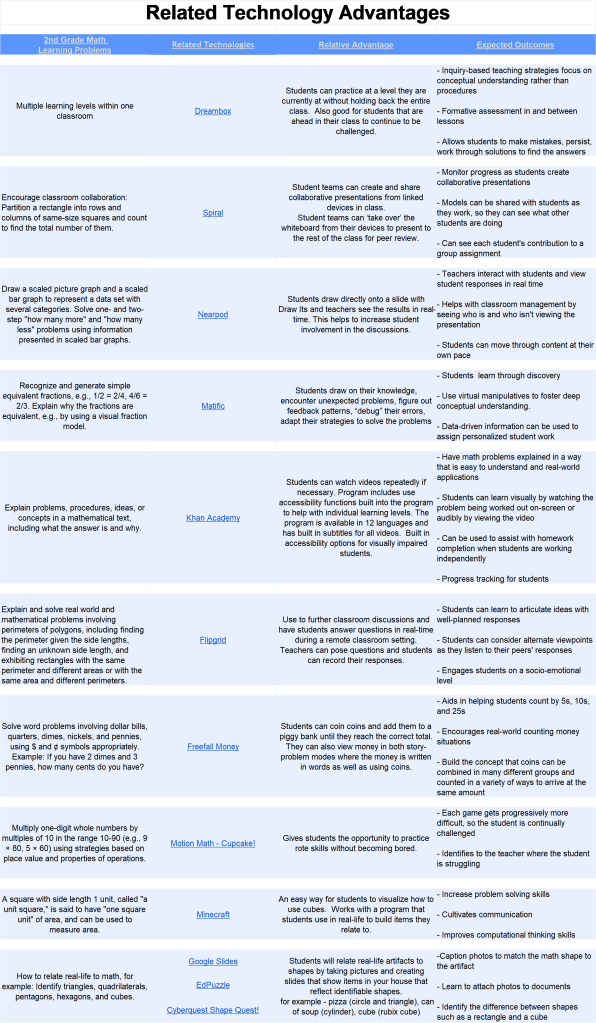
In this week’s class, we were asked to create a spreadsheet that identifies several technology options associated with our themed learning project in regards to relative advantage. My theme will be 2nd grade math class. Looking at the common core state standards for math in second grade, I identified several areas where I believe the use of technology would aid the instruction. I researched several websites for more information on programs recommended for teachers and students. One website which I found to be very helpful was Commonsense.org. Searching each program, I was able to retrieve information which was very beneficial in identifying the pros and cons of many tech programs, how they can be integrated into lessons, feedback from several parents and teachers, and privacy ratings. As expected, one is able to find a multitude of programs that do very similar things. Relying on the recommendations from several websites, I have chosen 10 programs that I believe would be beneficial in a second grade classroom. To complete the template, I have added the learning problem, the relative advantage to using the program, and the outcomes.

Assignment Instructions: Technology-based strategies offer many unique benefits to educators as they look for instructional solutions to problems that students may face with abstract concepts, motivation, and time consuming tasks. Teachers have to consider the benefits of using such methods compared to their current ones and decide if the benefits are worth the additional effort and cost. The first step in the TIP (Technology Integration Planning) model refers to this decision as “relative advantage”.

https://docs.google.com/spreadsheets/d/1B3JZnVkFj1CAzecxupsWjas-BacnKAjPAHbx-80MCOQ/edit?usp=sharing

541